What Is a Random Pair Generator and How Does It Match People?
A random pair generator takes a list of names, usually entered one per line, shuffles it and splits it into twos, so every person gets a partner by chance instead of by choice.
I started relying on one after a term where the same four friends found each other in every lesson. In classrooms, the pull toward familiar faces is strong, and a pair generator removes the negotiation entirely. The same logic carries over to speed networking, Think-pair-share rounds and an office Secret Santa, where nobody wants to be seen choosing.
Most of these tools need no installation and give results instantly in the browser. The first setting worth checking is the Pairing source: one roster split internally, or two rosters joined across. The second is how the tool handles Uneven pairs, because an incomplete pair at the end of a draw is where most complaints start.
Pairing also turns up where people don’t expect it. Gift swaps at a holiday party are a pairing problem dressed up as a shopping problem, and the same shuffle-and-split approach settles both in seconds.
How Do You Create Random Pairs From a List of Names?
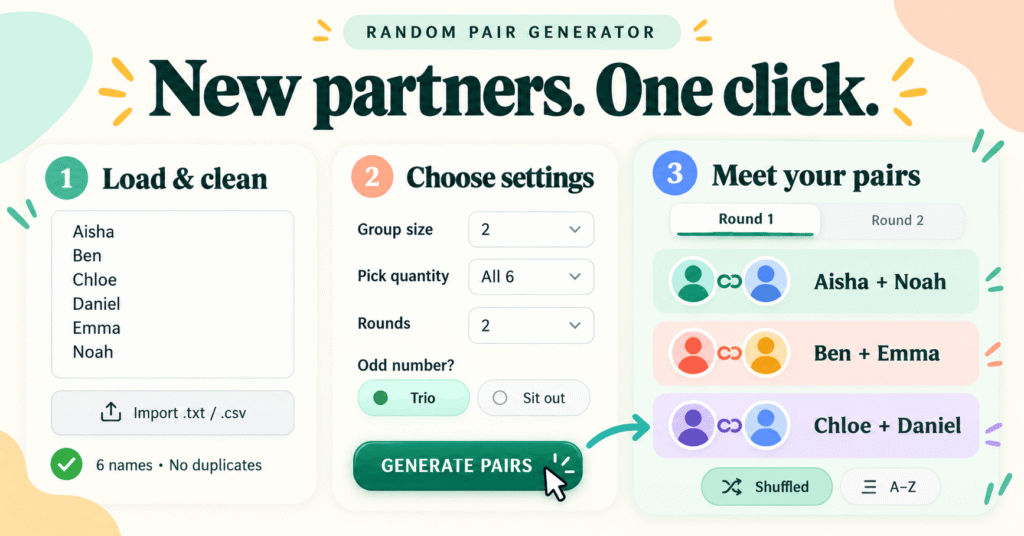
You create random pairs by loading your names into the generator, choosing pairs or larger groups, setting the number of rounds, and pressing the generate button.
The order of those steps matters more than people think. I once ran a draw before tidying the roster and ended up with a pupil paired with himself, because his name sat in the box twice. These are the steps I now follow every time:
- Items go in first, either line by line or comma-separated, or uploaded as a .txt or .csv file exported from a spreadsheet.
- Duplicate entries come out next, and the name count beside the input box is the quickest way to spot a roster longer than your headcount.
- Pick quantity decides whether everyone joins or only a chosen subset is selected, which helps when half the room is absent.
- One fewer round than the headcount is the ceiling if partners should change over time, so 10 students give 9 rounds, each with a new partner.
- Odd number handling is the last choice: decide whether the spare person joins a trio or sits out, then generate with one click.
After the draw, I glance at the roster in shuffled order and then sorted alphabetically to make sure nobody vanished. That check takes ten seconds and has saved me from more awkward moments than any feature on the screen.
Where Do Random Pairings Work Best?
Random pairings work best wherever choosing a partner could look personal, which covers lessons, office events, competitive play and idea sessions.
The contrarian point comes first: chance is not always the better option. For a reading task where a strong reader should support a weaker one, a hand-built pairing beats any shuffle. Randomness earns its place in school activities and teamwork exercises, where perceived fairness matters more than perfect balance.
| Situation | Setup that fits | Why chance helps |
|---|---|---|
| Office team assignments | Groups of 3 or pairs | Nobody can accuse a manager of picking favourites |
| Tournaments and ladder matchups | Pairs, with a fresh draw each stage | Chance-based seeding cuts arguments |
| Idea sessions with brainstorming partners | Pairs where repeats are allowed | Creative brainstorming benefits from overlap |
| Mixed pairing such as boys vs. girls or two classes | Two rosters matched across two lists | Every pair crosses the divide |
| A single activity or project within one group | One roster split into twos | Quick and even |
In my experience, the last row covers most everyday use. Pairing is less about the software If one pair needs to go first, a quick coin flip settles it, and more about removing that moment where one person stands alone, waiting to be picked.
Which Settings Control How Pairs and Groups Are Formed?
The settings that control pair and group formation are group size, the number of groups, whether repeats are allowed and how leftover people are handled.
Most people never open the settings panel, and that is a mistake. The pairing settings decide more about the outcome than the shuffle itself, because the shuffle is only fair inside the rules you hand it.
| Setting | What it changes | When to touch it |
|---|---|---|
| Desired size | Twos, threes or bigger groups | When pairs feel too small for the task |
| Number of groups required | Fixes the group count, and size follows | The room has a set number of tables |
| Per team headcount | Fixes the size, and group count follows | Games with fixed side sizes |
| No repeats | Each person appears once | Assignments rather than brainstorms |
| Leftover handling | Folds a spare into one group of three so nobody is left out | Uneven headcounts |
| One or two lists | Splits a single roster or joins two rosters | Mentor and mentee schemes |
Splitting into roughly equal groups is the default most tools ship with, and it suits nine draws out of ten. In Host Grouping, the organiser configures settings once, and those choices carry across every redraw, which keeps a long session consistent.
How Do You Save or Share the Pairings Once They’re Made?
You save or share pairings by copying them, downloading a file, printing a sheet or sending a link, and most generators offer all four from the results screen.
My own habit is to press Generate random pairs, then switch to full-screen mode on the projector so the results area fills the wall. People find their partner faster from a big screen than from a sheet passed around the room.
Before sharing, I rename the defaults. Labels like Team 1 and Team 2 mean nothing on a noticeboard, while “Window table” gets people moving. Display options matter as well: a clear separator between the two names, and the choice to hide pair numbers so nobody reads pair one as first place.
For records, a CSV file opens in any spreadsheet and keeps a history of who has worked with whom. Results can also be copied into a group chat, downloaded for later, or printed for a classroom wall when screens are off.
Can Participants Join and Get Paired on Their Own Devices?
Yes, participants can join from their own phones through a self-join mode, where the organiser shares a link and each person spins to receive a place in a group.
The flow only works when the steps run in this order:
- Signed-in organisers set the headcount and save the setup before anything is shared.
- The setup lands in the cloud as a Collect file, which is kept apart from a normal Private List.
- Each person opens the shared link on a phone and spins a random wheel to receive a spot.
- A page refresh on the organiser’s screen shows who landed where.
Balance choices carry over from the host-run mode: No balancing, Gender, or a custom Label such as year level. Icons for those categories can appear during the result replay, which makes checking the mix easy at a glance.
I like this mode for conference breakouts, because nobody queues at the front. Bigger storage sits behind Premium on the tools I have tried, so a one-off event rarely needs a paid plan.
Can You Lock Certain People Into One Group or Mark Team Leaders?
Yes, most team-style generators let you fix certain people in the same group, keep others apart, and mark leaders so each group starts with one.
The classic case is sports. Two strong players on the same doubles side ruin the competition, and a preset that keeps them apart fixes it quietly. Tennis and chess clubs I have helped run use the same trick to stop rating gaps from deciding the night.
Leaders need care. The leader count must be compatible with the team setup, since six captains and five teams is a mismatch the software should flag. When names are typed one by one, I mark the leaders as I go, instead of hunting for them afterwards.
Caps help too. Setting maximum people per group stops a preset from overloading one table, and counts per gender keep mixed groups mixed. You still assign the rules, and the generator only fills the remaining gaps by chance.
How Can You Customize Titles and the Look of the Results?
You customize a pairing draw by giving it a title, choosing how group size is set, and adjusting how the result screen looks before you press start.
A Group Title looks cosmetic until you run three draws in one morning. A clear title for the draw, such as “Period 2 lab partners”, prevents screenshot confusion later in the week. Most tools I have used link a video tutorial for this part of the setup.
Size control is the less obvious customization. All Equal spreads people as evenly as the headcount allows, while Manual Set lets you choose each group’s headcount by hand. I use the manual option for board game nights, where one game seats four and another seats six.
Extra grouping options include picking representatives from each group to report back. That small feature earns its keep in workshops and icebreakers, where somebody has to speak first and nobody volunteers.
Where Are Your Lists Stored Between Sessions?
Most pair generators store your lists in the browser on the device you used, so the roster is waiting on your next visit unless that browser’s stored data is wiped.
Lists that are pasted or imported stay on your own computer, and on privacy-minded tools nothing is processed on an external server or sent over the internet. That local approach is why a roster appears again next time without any sign-up.
The catch is simple: once browser storage is cleared, the roster goes with it. I keep a master copy as names separated by commas in a notes app, with a short description of the class, so restoring a lost list takes seconds.
Shared school laptops deserve extra caution. A roster left in one browser can greet the next teacher who opens the page, so I wipe it at the end of the lesson. More lesson helpers, from timers to team pickers, are on the tools for teachers page.
What Makes a Pairing Tool Quick to Use?
A pairing tool is quick to use when it opens in the browser, accepts a roster straight away and returns results without sign-up screens or setup menus.
I test every new tool the same way: a sample of twelve names that includes Sherlock, Frodo, Hermione and Katniss, and then I count the steps to a result. The good ones need no logging in and treat that sample like real input.
Price is rarely the barrier. Most are free, some without any limits, and one tool I tried supports anywhere from 2 to 50 teams, while another puts no limit on headcount.
Reviews tell only part of the story. One pairing page showed a 9.5/10 average from 9 reviews, which is a small sample. Redraw speed matters more to me: a New pairs button that regenerates results in place beats one that reloads the whole page.
What Happens When Your Headcount Is Uneven?
When the headcount is uneven, a pair generator usually turns one pair into a trio, so the extra person still has someone to work with.
Not every tool defaults to a trio, though. Some let you skip the spare, leave a blank in the Name 1 or Name 2 columns of the results table, or have the gap filled in automatically with someone already drawn.
I prefer groups of three for classwork, because a doubled-up name confuses who is responsible for what. With an even number of people, none of this applies, and every pair is a clean two.
My advice is to decide the rule before the draw, not after. Announcing the trio rule up front stops anyone feeling singled out when they land in the bigger group.
How Many Rounds Can Run Before Partners Repeat?
With a balanced headcount, the number of rounds before anyone repeats is the headcount minus one, because each person can only meet so many others.
Rotation planners ask how many rounds you want, then rotate people until everyone has met everyone else. For peer review across a term, I plan several rounds upfront so classroom partners change weekly without a fresh draw each Monday.
Each round deserves a quick check before you show it. Students spot repeats faster than any audit, and one repeated pairing undoes the trust a rotation builds.
If the headcount changes mid-term, I rebuild the schedule from that week onward. Patching an old rotation by hand is where repeats sneak back in.
Is Your Class List Saved or Sent Anywhere?
Most pair generators save your class list in your own browser rather than on a company server, so the roster stays on the device you used.
Lists save automatically as you type, but clearing browser data wipes them. Some tools hold up to five lists at once so you can switch between classes, though only the active list persists after a reload.
Cloud storage is different and needs an account. Free accounts on one tool keep 15 files, while paid ones hold up to 120. Sharing results directly from the app usually requires signing in as well.
For a class roster, I stick with browser storage. It keeps pupil names off third-party systems, which is one less thing to explain to a cautious parent.
Does a Pair Generator Cost Anything?
Most pair generators cost nothing for core pairing, and paid tiers mainly add branding and visual extras.
The paid layer typically covers custom logos, banners and background images. Free settings on the same tools already include confetti, background transparency and adjustable spin and grouping durations, which is more polish than most lessons need.
My view is that nobody running a classroom or club night needs to pay. The branding extras make sense for an event company putting a pairing screen on stage, not for a Tuesday tutorial.
If a tool hides basic pairing behind a paywall, move on. Plenty of alternatives handle the core job at no cost.
Do You Need to Sign Up to Make Pairs?
No, you do not need to sign up to make pairs; registration only matters when you want to store or share results from inside the tool itself.
No login is the norm for generating and downloading results. Downloads and Excel files typically work without registering, and you can export a set of pairs in seconds.
Sharing is where sign-ups creep in. A share link that captures your inputs and titles, a results link, or an image of the final screen may sit behind a profile, depending on the tool. In self-join setups, the organiser also saves the file before anything can be shared.
I keep a throwaway workflow for one-off events: generate, download, close the tab. Nothing needs an inbox confirmation.
Can You Match Names Across Two Separate Lists?
Yes, a two-list pair generator matches each name on one roster with a name on the other, so every pair crosses between the two groups.
Language exchange schemes are the textbook case, with native speakers on one side and learners on the other. One-on-one meetings between mentors and new hires work the same way, and the cross-roster rule stops two mentors pairing up by accident.
Schools use the same setup for study partners across year levels, or study buddies between two classroom groups. Universities pair course groups from different subjects when assigning topics for joint projects, which spreads skills further than a single roster could.
The only snag is unequal rosters. When one side is longer, decide in advance whether the extras double up or wait for the next round.
What Counts as a Pair in a Generator?
In a generator, a pair is simply two entries from your roster picked at random and shown side by side.
Enter each person on their own line, press Generate Pairs, and the tool divides the roster and matches the entries two at a time. Team-style tools do exactly the same job if you set the group size to 2.
The arithmetic gets clearer as rosters grow. 16 names make eight pairs or four groups of four, while nine names make three pairs plus one trio.
If you need all possible combinations rather than one random set, that is a separate kind of tool built for listing every option. For everyday pairing, enable unique-only output so nobody turns up twice.
How Do You Put Everyone on a Team Without Repeats?
To put everyone on a team with no repeats, switch on the unique-pairs option so each name appears exactly once, then run the draw.
That option is often labelled Only Generate Unique Pairs. Without it, a tool may pull two rows at random again and again, and the same person can land in several pairs. A Max Pairs cap limits how many results come out when repeats are allowed.
The output appears under a Generated Pairs heading. Unique mode suits tournament schedules, work groups, splitting tasks across a team, and topics for group assessments.
I double-check the count afterwards. If the roster had twenty names, there should be ten pairs, and anything else means a setting slipped.
How Many Times Can You Redraw the Pairs?
You can redraw pairs with no cap on most generators, since each redraw is a fresh random shuffle of the same roster.
Quick setup makes redraws painless; one tool builds teams in about three clicks, which saves time when a pairing needs a do-over after a late arrival.
The contrarian view is that redrawing until people are happy defeats the point. Teachers I have worked with treat the first draw as final, because fair pairings only feel fair when nobody can lobby for another go.
Brainstorming is the exception. Non-unique mode lets the same person appear in more than one pair, and cosmetic sounds, colors and themes do nothing to the odds, whatever the room believes.
Can You Pick Leaders Before the Draw?
Yes, you can pick leaders before the draw on tools that support it, usually by typing a symbol in front of a name.
Typing an asterisk before Ana, written as *Ana, marks her as a leader, and the tool places leaders first in each group. The number of leaders should equal the number of teams, and the tool alerts you when the two figures differ.
Preset members, found under the More menu in the Inputs section, handle a related need: keeping certain people together or separate.
I use leaders for science practical’s, and spin the Periodic Table Wheel to give each bench its element. where each bench needs one pupil trusted with the equipment. The rest of the bench is left to chance.
How Many Teams Can One Draw Produce?
One draw can produce anywhere from two teams to about a hundred groups, depending on the tool.
The highest ceiling I have seen is 100 groups. Some tools also show how many teams can be formed from your headcount before you commit, which avoids awkward single-person teams. In a classroom, I rarely go past eight.
Results can go full-screen on a desktop or tablet for the reveal. Separately, Manual mode lets you adjust team sizes one by one, and customizable group sizes help when you split the teams unevenly on purpose.
Round labels on some tools cycle in order with each draw and can be reset between sessions, which keeps a long tournament easy to follow.
Is a Spinning Wheel Good Enough for Pairing?
A spinning wheel can pair people, but a dedicated generator is faster for full rosters because it pairs everyone in a single pass.
Wheels shine in Self-Join Grouping. Each person spins for a group assignment through a Join Link, after the host sets the expected participant count, and the host refreshes the file to see the results.
The spectacle is the real draw. Spins are Unlimited, you can reshuffle as often as you like, and result titles add a sense of occasion that a plain table lacks.
For thirty people, though, thirty spins take far longer than one generate press. I save the wheel for small groups where the drama is the point, and where pairing without favoritism has to be visible.
Is There a Pair Generator App for Phones?
Most pair generators have no native app, but they run in any mobile browser and can be pinned to your home screen like an app.
A mobile-friendly layout matters more than a download. Open the tool, then use the browser settings menu to pin it; from then on it opens full-width like any installed app, with no store listing or permissions screen in between.
The only requirement is that JavaScript stays switched on, since the pairing happens in the page itself. I keep one pinned on my phone for staff meetings and quiz nights, and it has never needed an update.
Need bigger groups? Use the random team generator.