Embed a Spin Wheel: How Do You Put a Working Wheel on Your Own Site?
To embed a spin wheel, build the wheel in an online wheel builder, copy the iframe or HTML code it produces, and paste that code into an HTML block or code view on your page; for slides, paste the wheel’s direct URL into a web-viewer add-in instead.
I started embedding wheels for a client’s holiday campaigns, and the first lesson was that “embed” and “link” are not the same job. A link sends people to someone else’s site. An embed keeps the spin on your page, so visitors become active participants instead of passers-by, which matters most on coming-soon pages and product launches where every exit is lost traffic.
The second lesson was that the wheel itself is the easy part. Most of my setup time goes into what surrounds it: the email gate, the post-spin message, and how a shortened link behaves once the paid plan behind it lapses. Those details decide whether a wheel survives a busy launch week.
Teachers paste the same kind of code to put name pickers on class wikis, and community managers drop giveaway spinners into community hubs. The mechanics barely change across those audiences; only the stakes do. A static coupon printed on a page gets skimmed past, while the same offer behind a spin feels earned.
Why Would You Embed a Spin Wheel Instead of Linking to One?
You embed a spin wheel instead of linking to one because an embedded wheel keeps visitors on your own page, lets you attach lead capture to the spin, and works on any website platform that accepts an iframe.
Linking out made sense when a wheel was a novelty you opened in a new tab for a classroom pick or a quick raffle. Now the wheel usually has a job: running discount promotions, powering gamified experiences inside an onboarding flow, or serving as a livestream prize draw that viewers watch spin with the host.
The vendor side has grown around that shift. One widget maker says it is trusted by 10,000+ marketers, and another says its code runs on 200+ platforms. I read both as marketing figures, yet they match what I see in client work: prize wheels have moved from party tricks into e-commerce promotions with real budgets attached.
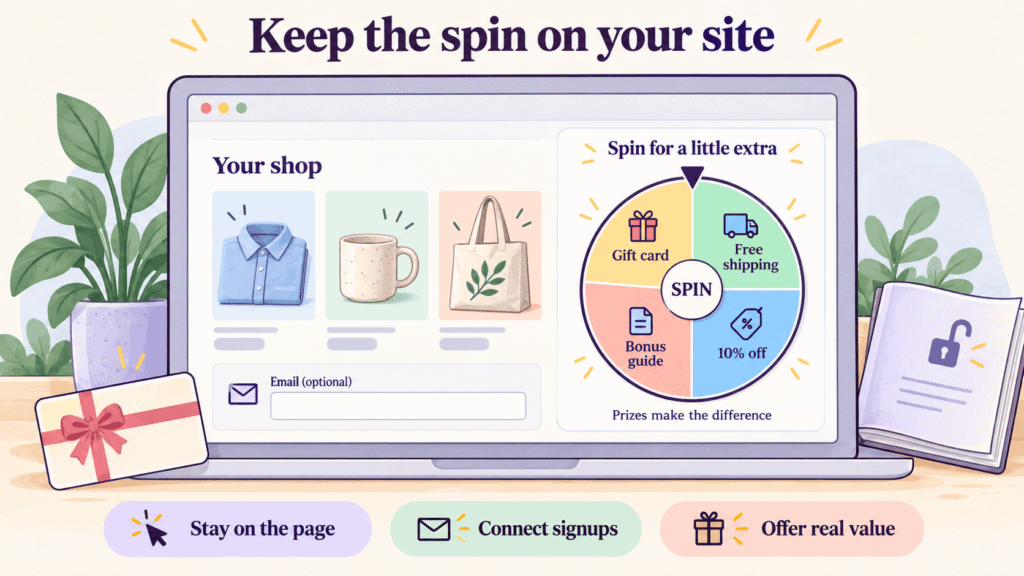
My contrarian view is that a spin-to-win wheel is not a sales tool by default. In my experience, a landing page with a wheel and nothing worth winning does no better than a plain offer. The prizes, such as gift cards or content unlocks, carry the weight; the wheel only makes the reveal feel fair.
What Happens Between Building a Wheel and Pasting Its Code?
Between building a spin wheel and pasting its code, three things happen: you enter the wheel’s options, you style it, and the builder turns those choices into an embed code that you paste into your page’s HTML.
The paste step is where most first attempts go wrong, so this is the order I follow on any site:
- Copy Code from the HTML Embed Code box, not the share URL meant for slides.
- Open your website editor and scroll to the target section where the wheel should sit.
- Switch to code view, or add a Custom HTML block if the site runs on WordPress, then paste.
- Publish, then reload the live page on a phone and on a laptop.
The WordPress route needs no plugin, which surprises people who expect one for everything. Squarespace and Wix accept raw HTML the same way, and some widget vendors publish platform guides for each builder. On a Canva website project, you add an Embed element and paste the code there, then publish the site as usual.
Which Wheel Settings Can You Change Before You Copy the Code?
Before you copy a spin wheel’s code, you can change its entries, how likely each entry is to win, its colors and sound, and the look of its pointer and lettering.
Entries come first. Most builders take them through an Inputs field, and the better ones let you give each entry a weight that changes its pie size. The default weight is 1, so every slice starts equal. One tool switches to a short URL once you add more than 10 entries, and that URL stays alive only while your subscription does.
Sound and looks come next. A spinning sound is standard, while pie colors and the option to hide the logo are usually kept for premium users. Prize-focused builders go further: each of the slices gets its own probability and outcome message, and you pick a skin, slice fonts, a pointer style, and the spin animation.
What surprises newcomers is that no account is needed for many of these tools. You fill in the generator, press Generate, and copy the result. I keep a text file of every generated code I have shipped, so I can rebuild a wheel later without guessing at old settings.
How Do You Add a Spin Wheel to a Website or Blog Page?
You add a spin wheel to a website or blog by pasting its iframe code into an HTML area of the page, then sizing the wheel so it fits the column it lands in.
Sizing is the step people skip. One builder’s default frame asks for full width, a height of 550px, scrolling disabled, and no frame border, which suits a wide content area but crowds a narrow one. This is the fitting order I use:
- Embed Size first: Small (400×480), Medium (520×600), or Large (660×740).
- Embed Alignment next: left, center, or right.
- Live Preview check: press the test spin button once to confirm it turns.
- Inline placement for the first test: paste the iframe snippet where readers will meet it.
The width rule matters more than the height rule. Builders usually set the frame to 100% of whatever holds it, so the box around the wheel decides its final size. On a tablet, a Large wheel in a two-column layout can push the spin button below the fold.
Prize widgets add their own CMS widget or page builder module and can show the wheel as an exit-intent popup, a side panel, a static placement, or a popup on arrival. Each choice changes how pushy the wheel feels. On blogs I keep it in the flow of the post, because readers came for the writing, not the prize.
How Do You Get a Live Spin Wheel Into a PowerPoint Slide?
You get a live spin wheel into a PowerPoint slide by installing a free web-viewer add-in from Microsoft and pasting the wheel’s Direct Link into it, rather than the iframe code.
That distinction trips up presenters and trainers all the time. Slides don’t read HTML, so the HTML section of a builder is no help here. You need the plain URL, sometimes offered as a Shareable URL, where each configuration gets its own unique URL that keeps every setting baked in.
Sizing rules change too, because the add-in fills its box and ignores the builder’s height and width. The Wheel Color and Color Theme still carry over, since those live in the URL. Before a session I press Save & Refresh and check that the Wheel Title reads well from the back row.
When the add-in is blocked, which happens on locked-down school laptops, a slide button that links out is the fallback. Google Slides is stricter still: it can’t host a live iframe, so add a hyperlink to a shape that opens the wheel in a browser tab, and keep that tab ready behind the deck.
Should You Start From a Spin Wheel Template?
You should start from a spin wheel template when your goal matches a common pattern, such as a coupon reveal or an email giveaway, and build a blank wheel when it doesn’t.
Templates save setup time, but each type carries assumptions about prizes, forms, and timing. The comparison below shows the four common types and what each one tends to bundle:
| Template type | What it usually includes | Where it fits |
|---|---|---|
| Discount wheel | Percent-off slices, a free gift, extra bonus slots | Online stores, including BigCommerce shops |
| Giveaway wheel | Email entry, a prize list, a winner animation | Social media contests and trade show booths |
| Decision wheel | Plain options with equal or weighted slices | Training gamification and classroom use |
| Popup wheel | A timed or exit trigger plus a short form | Restaurant and bar promotions and seasonal sales |
Automated restyling is now common: pick a template, describe the change, and the builder rewrites it. I still rewrite every redirect and inbox prompt by hand, because template copy reads generic and repeat visitors notice.
A contrarian note from my own setups: a plain decision layout often handles discount-code reveals better than a dedicated discount layout, simply because it has fewer moving parts to break.
Can AI Build a Custom Spin Wheel Widget for You?
AI can build a working spin wheel widget from a short written brief, but a person still has to check the prize logic, the form Fields, and where each entry ends up.
When I tried a text-to-widget builder, it returned a usable wheel with a signup form and a results dashboard that offered a CSV download. That speed is useful for a first draft. It does not tell you whether the odds, the copy, or the follow-up emails make sense for your audience.
The real value sits in the plumbing. Integrations with spreadsheets, chat apps, and payment tools let a spin push a lead straight into the systems you already run. I still open the custom CSS panel to fix spacing, because generated layouts rarely match a brand’s grid on the first pass.
The rest is configuration a human should own: spin limits, display rules such as showing the wheel after a delay, a choice of color skins and multiple layouts, and the redemption flow that winners follow. A user-friendly interface hides how many switches exist, which is why I review each one before launch.
What Can a Spin Wheel App Inside Canva Access?
A spin wheel app inside Canva can, while it is open in a design, add content to that design, send files to your Canva account, and read your saved brand colors and logos.
That list comes from the listing of one free spin wheel app in Canva’s Apps Marketplace. Apps like it build picture-based wheels for interactive design work, aimed at shop sales and quick two-answer games, so they suit social posts and printed handouts more than live websites.
Brand access is the part I would question on a shared team account. A wheel that only needs sample entries and a few colors can still read every logo and font your team has saved. That is normal for the platform, but it is worth knowing before you click approve.
For a live, spinnable wheel on a site, the Canva route is different. Canva Pro and Canva Websites users paste a wheel’s URL into an embed, while static Canva templates stay pictures until an app adds motion.
Is Embedding a Spin Wheel Free?
Yes, embedding a spin wheel is free on most builders, since building the wheel, styling it, and copying its code usually cost nothing. Free tiers trade cash for a credit link or backlink to the vendor, which usually can’t be removed, and that line points visitors to the vendor’s other free wheel tools while keeping the embed feature free. Extras such as Show Logo controls sit behind upgrades. One no-code Canva app in the Interactivity category costs nothing on every Canva tier, and I’d start from scratch on a free plan before paying for anything.
How Do I Embed a Spin Wheel on My Website?
You embed a spin wheel on your website by copying the builder’s HTML or iframe code and pasting it into an HTML block on the page where the wheel should appear. Put it in the main column for a giveaway, or the sidebar for a wheel that stays up all month. The code sits inside a div, so the parent container sets its width. On Shopify and similar store builders, an iframe block does the same job; check the result on a desktop screen and a phone before you announce it.
Do I Need Coding Skills to Embed a Spin Wheel?
No, you don’t need coding skills to embed a spin wheel, because the builder writes the code and you only paste it. Prize widgets hand you a one-line embed code, newer tools accept briefs in plain English, and a visual editor handles the look. Even layout and fonts are point-and-click. The only code I ever touch is the Height (px) value, and that is a single number.
Can I Change How an Embedded Spin Wheel Looks?
Yes, you can change how an embedded spin wheel looks, from its colors and text to its theme and pop-up wording. Ready-made themes such as rainbow, ocean, sunset, forest, candy, and neon cover most needs, and one builder also lists Galaxy. You can set the Text Color and the Winner Popup Text, choosing a line like Congratulations or Lucky pick, then Mute the sound and switch off Confetti for a quiet office page. Most editors are drag-and-drop, with custom styling optional.
Can I Edit Entries or Colors After the Wheel Is Live?
Yes, you can edit entries or colors after a wheel is live, though on most free tools that means producing fresh code and replacing what is on the page. Entries go in one per line, and one tool lists its cap as maximum 50 entries. Some paid widgets push later changes automatically, so the pasted code never moves. Swapping in fresh code takes about a minute, and one free tool shows an expired notice only after 180 days without views; otherwise its wheels have no fixed end date. I save my configuration panel settings in a note so any rebuild is quick.
Will an Embedded Spin Wheel Slow Down My Page?
No, an embedded spin wheel shouldn’t slow down your page, because an iframe runs separately from your site’s own code and doesn’t hold up the rest of the page. I have dropped wheels into slow Google Sites pages and an Elementor build and saw no change in how fast the text appeared. Swapping a static list of names for a live wheel adds a frame, not a script bundle. Prize widgets are responsive and their spin buttons are touch-friendly, so mobile visitors get the same lightweight frame.
How Long Does an Embedded Spin Wheel Stay Live?
An embedded spin wheel stays live as long as the builder hosting it keeps serving the code, and on one free tool that means indefinitely while people keep opening it. To refresh a wheel, reconfigure it in the builder, copy the new embed code, and swap it for the old code. Premium short URLs on another tool stop working when the paid plan ends. I log every embed link with its date, and a wheel I put on a Webflow site months ago still spins.
Does a Spin Wheel Embed Work on WordPress, Wix, and Shopify?
Yes, a spin wheel embed works on WordPress, Wix, and the major store builders, along with any builder that accepts custom HTML or an iframe. Paste the code into your site editor, and similar platforms such as Squarespace behave the same way. Notion pages accept the embed too, and prize widgets also support HubSpot pages. Most of those widgets need just one line of code.
Does an Embedded Spin Wheel Work on Phones?
Yes, an embedded spin wheel works on phones, since builders size the wheel to the screen and keep the spin button easy to tap. The wheel loads in its own iframe, so your page scripts and loading order stay untouched. From what I have seen, phones are where spin wheel games collect most of their taps, so a colorful wheel with short labels beats a crowded one.
Can I Spin the Wheel Inside a PowerPoint Presentation?
Yes, you can spin a wheel inside a PowerPoint presentation by adding the free Web Viewer extension and pasting the wheel’s URL into it. Go to Insert, choose Get Add-ins, add the viewer, paste the URL, and click Preview. Builder size settings don’t apply, since the wheel fills the box’s full height and width with a transparent background. One builder says its wheel can’t be embedded in Keynote or Prezi, so test other apps before the meeting.
Can I Embed a Spin Wheel in Google Slides?
No, you can’t embed a working spin wheel in Google Slides, so the workaround is linking a slide object to the wheel so it opens outside the deck. I draw a large button, link it to the wheel, and run live spins in a second window beside the presentation. PowerPoint handles this better, because its web-viewer extension shows the wheel on the slide itself.
Can I Put a Spinning Wheel in a Canva Design?
Yes, you can put a spinning wheel in a Canva design, either by pasting a wheel’s URL into an embed on a Canva site or by adding a wheel app from the marketplace. Marketplace apps build image-based wheels that give random outcomes, which suits yes/no games and store sales promotions. For a site, the URL route keeps the wheel spinnable.
Do I Have to Keep the Credit Link on a Free Embed?
Yes, most free spin wheel embeds require you to keep the builder’s small credit line, because that line is how the free service pays for itself. Some free embeds advertise no watermark fees or usage limits, and the credit is the trade. Paid widgets drop it, add premium skins, and run under your own domain and branding, which matters for stores.
Can an Embedded Wheel Collect Email Leads?
Yes, an embedded wheel can collect email leads by asking visitors for their details in a form that unlocks the spin. This gamified opt-in feels lighter than a newsletter box, and a short lead capture form works best. Entries go to your existing email tool, or out as a CSV export on paid plans, and custom-field email gates can add phone numbers. Pair the form with discount codes, since hiding a code behind the spin gives people a reason to finish it.
Can a Spin Wheel Hand Out Real Discount Codes?
Yes, a spin wheel can hand out real coupon codes, as long as each prize slice holds a working code your store accepts. Turning a coupon into a spin creates an interactive moment, and slices can also hold free shipping or bonus prize segments. Set a maximum number of spins per user so nobody farms codes. I test every code at checkout first, because a broken code costs more trust than offering no prize.
Can I Limit How Many Times a Visitor Spins?
Yes, you can limit how many times a visitor spins by setting a cap in the widget’s settings. Paid plans raise monthly spins, while one free plan covers one campaign with no time limit and no credit card. Caps work best when the wheel asks for an email address before the spin, since that ties each spin to one person.
Can I Make the Top Prize Land Less Often?
Yes, you can make the best prize land less often by lowering its odds compared with the other slices. Each segment carries its own odds, so you can weight individual slices to keep the grand prize at a sliver while customizable prizes such as small discounts fill the rest. Make sure the custom message for the grand prize includes a clickable button to claim it.
Can Winners See a Custom Message After the Spin?
Yes, winners can see a tailored message after the spin, often with a button that sends them somewhere useful. An instant prize reveal followed by a direct path to checkout uses the excitement while it is fresh, and I keep the winner announcement animation short so the message isn’t buried. Builders sell these flows as conversion-ready, but the wording is still yours. Match tone to timing: a wheel shown on load greets people, while one shown when a visitor is about to leave should make a clear last offer.
Can I Control When the Wheel Appears on the Page?
Yes, you can control when a spin wheel appears, showing it as soon as the page opens, after a set pause, or when a visitor heads for the exit. A timed popup works on stores, and exit wheels often carry a rare top prize. Run A/B testing on two variants before deciding, and keep the winner as the new control.
Can a Spin Wheel Widget Connect to My Other Tools?
Yes, a spin wheel widget can connect to your other tools, sending entries and results to apps you already use. One builder lists Google Sheets, Slack, Google Analytics, and Stripe, and its platform also runs databases, scrapers, email sending, submissions, and voting systems. The same engine powers its quizzes and calculators.
How Is an Embedded Wheel Different From a Template or Spinner Site?
An embedded wheel differs from a static design or a public spinning page because it runs on your page, under your control, and can record who won what. For quick decisions or random selection, a general-purpose public spinner is fine, and customizable segments cover most classroom needs. For prizes, keep the wheel home: visitors explore longer when a fun interaction offers a chance to win rewards like discounts.
What Is a Spin Wheel Widget, and Why Do Visitors Engage With It?
A spin wheel widget is an interactive element that gives visitors a prize or result when they spin, and visitors engage because the outcome feels earned rather than handed out. That engagement shows up for bloggers and content creators running challenges as much as for stores. Unlike spinner sites, a widget tracks prize outcomes, and the real time spin is the hook that keeps people watching.
What Is a Spin Wheel App in Canva?
A spin wheel app in Canva is a marketplace add-on that lets you build a spinning wheel inside a Canva design. One free option asks for permissions to add content, upload media, and read your Brand Kit. Its developer links Terms & Conditions and a Privacy Policy and says it follows applicable laws. To try one, log in, select a design, and follow any setup steps the app shows.
How Do I Start a Spin Wheel App in Canva?
You start a spin wheel app in Canva by signing in, finding the app in the marketplace, and opening it inside a design. New users finish sign-up first, then search the marketplace by the app’s name. The free app I looked at works with any Canva plan, and it loads inside the editor after a short wait.
Is a Canva Spin Wheel App Safe to Use?
Yes, a Canva spin wheel app is generally safe to use, since Canva says marketplace apps are reviewed against its security requirements before they are listed. You can still check what each app can access before you approve it. A wheel only needs your options and a Style choice, so an app asking for more deserves a second look. I apply the same habit to a prize widget’s View all integrations page and connect only what I will use.