Quick, fair tools for the classroom. Pick students, make groups, start discussions and break up long lessons. Everything works on a projector or interactive whiteboard, with no sign-up. Need to call on a student? Use the random name picker or the wheel of names.
- Random Word GeneratorRandom nouns, verbs, adjectives and Pictionary words.
- Random Team GeneratorEven-sized random teams, with rules, team names and printing.
- Random Pair GeneratorRandom partners, with rotating rounds and no repeats.
- Brain Break WheelSpin for a 1–3 minute classroom reset.
- Icebreaker Question GeneratorRandom icebreaker questions for work, class and parties.
- Conversation StartersQuestions that get a good conversation going.
- Question of the DayA new question for everyone, every day.
- Random Country GeneratorSpin all 195 countries or one continent.
- Random US State GeneratorSpin for one of the 50 US states.
- Random Color WheelSpin for a color and copy its hex code.
- Flag QuizGuess the country from its flag: 195 flags.
- Times Tables WheelRandom multiplication questions, answers hidden.
- Periodic Table WheelSpin for a random element from all 118.
- Online TimerA countdown timer and stopwatch with an alarm.
- Random City GeneratorSpin for a random real city anywhere.
- Random Math Problem GeneratorRandom math problems to practise, with answers.
- Random Emotion GeneratorA random emotion with an emoji and its meaning.
- Word Scramble GeneratorScramble your words for a printable jumble or game.
What Classroom Tools Can Teachers Use for Free Online?
Teachers can use free, browser-based classroom tools such as countdown timers, random name pickers, group makers, live polls, quiz generators and printable worksheets, and most of them open on a classroom display without an account, while paid plans mainly add saved setups and remove ads.
I came to this toolkit sideways. For my first couple of years, a timer and a Random Name Picker were Friday novelties, and it took a dead projector remote and a restless afternoon class before I noticed they were doing more classroom management than my seating rules. That is the angle worth starting from: these tools are small pieces of planning that keep running once the lesson starts.
The scale of the category explains why so many options look alike. One whiteboard-style service reports 2 million teachers, 450k daily users, 180+ countries and 3200+ organizations. Free sites list dozens of utilities each, from timer widgets and a Quick Poll to printable worksheets, and nearly all of them run on any device with a browser, including a phone or laptop connected to the projectors most rooms already have.
The useful question is which popular tools earn a place in a lesson and which stay bookmarked. My shortlist is short: something to time, something to pick, something for quizzes, a Digital Whiteboard and a Group Maker. A premium membership usually buys no ads and saved setups rather than new teaching moves, and the wider EdTech field, from a template library of screens to tools that live on a course platform, fills in the rest.
Can You Use Classroom Tools Without Creating an Account?
Yes, most no-cost classroom tools run directly in a web browser with no login, no payment and no downloads, so a teacher can load one on the classroom display and start straight away.
The no-account approach is an old teaching habit. Early web resources were single pages swapped between colleagues by link, and today’s free online teaching tools keep that habit: one site lists 134+ utilities and another offers 37 ready-to-use tools, none of them behind a sign-in screen. For a cover teacher in an unfamiliar room, that matters more than any feature list.
The catch is where your setup lives. With no account, a page either forgets everything when the tab closes or keeps settings stored in the URL, which makes sharing a dice setup or class list as easy as copying the tool URL. I keep one text file of those links per class, and fullscreen mode on one display hides the address bar from students anyway.
Accounts start to matter when you want to keep work. Some free sites carry advertisements, and one paid add-on costs £9.99/yr for copying setups between classes and privately sharing them with colleagues. A Chrome extension that saves recordings to Google Drive also needs a sign-in. For everyday productivity in school classrooms, the open-in-a-tab model is what tends to save teachers time, and paid support is rarely the deciding factor.
Which Classroom Tools Do Teachers Open Most Often?
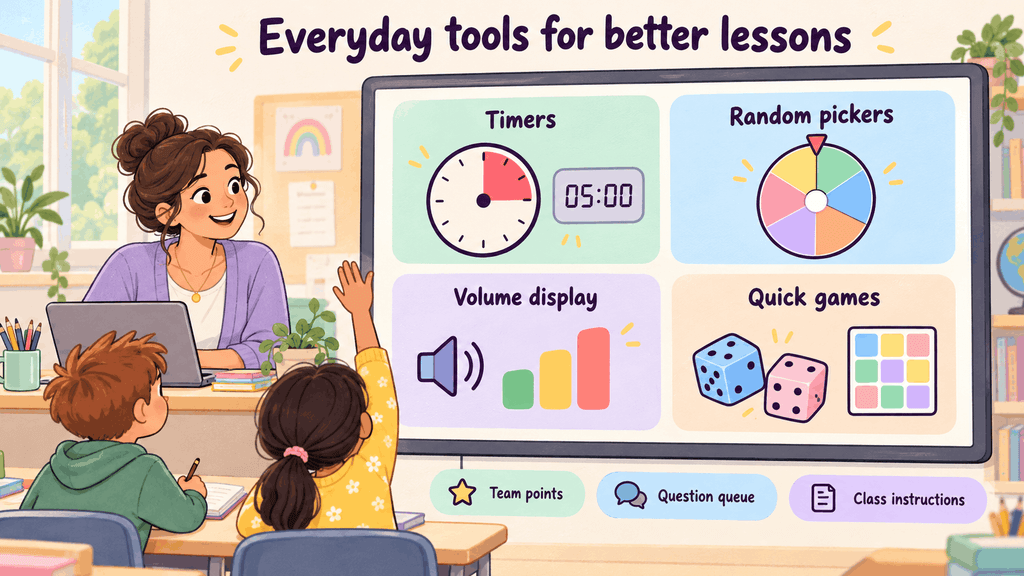
The classroom tools teachers return to most often are timers, random pickers, volume displays and quick games, because each one fixes a problem that appears in almost every lesson rather than once a term.
Free sites feature a sound panel, a picker, a volume display and a clock on their front pages, not clever learning tools for one topic. My own browser history agrees: a Traffic Light Timer or Visual Time Timer for independent tasks, an Online Stopwatch with lap times for practicals, a Pomodoro Timer for revision, and a clock with an analog face or digital display.
Counting and organising come next. Noise meters make volume visible, a Tally Counter with large +1/−1 buttons and color-coded rows tracks team points, and a Question Queue works as a virtual queue so the same three hands stop dominating. A Message Board with high contrast text carries instructions, while Dice Roller pages, spinning wheels and other selectors cover every “who goes first” moment.
The quick-game tier is where opinions split. A Reaction Time Test, a Drag and Drop Quiz or a Bingo Card Maker can make for brighter lessons, but I keep most of them for the end of term. The simple test I apply is whether a tool still earns its place on a wet Tuesday with a class that has seen it ten times, and Running Dictation is one of the few that passes.
How Do Timers and Management Tools Keep a Lesson on Schedule?
Timers and management tools keep a lesson on schedule by moving routine messages, such as how long is left, how loud the room is and what comes next, from the teacher’s voice onto a screen students can check for themselves.
I learned the value of that shift during a term with a strained voice. With an online whiteboard showing a countdown and a Class Noise Meter reacting to classroom volume, the room stayed on task with far fewer reminders, because the display did the nagging. One free homepage even uses a preview widget set to 10:00 as its demo, which says a lot about what teachers reach for first.
The approach works because it builds a visual routine on the right screen. Younger groups in Pre-K and Elementary settings rely on displays that communicate with visuals during transitions, and older students simply like knowing the plan. A Soundboard adds sounds and music cues, which I use sparingly so they keep their effect, and ready-made screens save building the same layout daily.
| Lesson moment | Display that helps | What students see |
|---|---|---|
| Arrival | Morning screens and daily screens | The agenda and first task, ready immediately |
| Routine jobs | A checklist of daily activities | Who does what before the bell |
| Check-ins | A mood or question slide | A quick way to check in with students |
| Calm-down | A phone-free breathing or reflection prompt | A pause that resets the room |
A display cannot energize a tired class on its own, so I switch from the timer to a short movement break when energy drops.
How Do Random Pickers Choose Students and Groups?
Random pickers choose students and groups by drawing at random from a list the teacher enters, so every name has a chance each round unless the tool is set to remove names already picked.
The interesting part is what “fair” means to a class. A Name Spinner that visibly lands on someone feels fairer to students than a teacher’s glance, even when the teacher was choosing well, and that perception is half the value. I also spin for questions or topics, which takes the argument out of who presents first.
For grouping, a Random Group Generator removes the long shuffle when forming classroom teams, and group generators that balance by ability help with mixed-ability grouping. Random is not always right, though. Teachers who handle IEPs and accommodations use random seating with fixed exceptions, and importing class lists keeps seating plans and differentiation intact.
Pickers also drive games and probability. Hot Seat, Pass the Bomb, an Elimination Game and Revision Roulette all rely on a random draw, an Icebreaker Generator or Two Truths & One Lie does the same for start-of-year discussions, and a Probability Simulator shows why a fair picker still repeats names. Spreading questions fairly is the quiet benefit; a questioning log showed me I had been ignoring the back row.
Which Quiz and Assessment Tools Check Understanding During a Lesson?
The quiz and assessment tools that check understanding best during a lesson are the ones that show every student’s answer at once, such as live polls, short quizzes and anonymous idea boards, rather than games where only the fastest hand counts.
I came to this view after years of noisy quiz games that told me very little. A Brainstorm Board where students post anonymously in real time reveals misconceptions that a points race hides, and teachers on one whiteboard service praise its multiple choice and draw features for the same reason. A Retrieval Practice Generator or AI Quiz Generator speeds up question writing, though I still edit the output.
Subject quiz generators fill the gaps between big assessments. A Maths Problem Generator, Times Table Challenger, Mental Math sheets, Math Walls and Magic Squares with adjustable difficulty cover number work, while an Element Quiz Generator, Physics Equation Quiz and World War Timeline Pop Quiz suit science and history. The math problem generator makes a quick worksheet at easy, medium or hard level.
Video and lesson platforms take a different route. Edpuzzle places questions inside video and can stop students skipping ahead, Nearpod adds polls and virtual field trips, and Curipod builds AI-assisted activities. Whole-class game formats such as an Arcade Game Generator, Image Reveal Tool, Live Poll Wall or QR Treasure Hunt work best as warm-ups, with formal assessment resources saved for later.
What Visual and Text Tools Help Students Work Through Information?
Visual and text tools help students work through information by changing its shape, for example turning a paragraph into a diagram, hiding words to force recall, or projecting a chart a class can mark up together.
The text side is where I have seen the clearest gains in English and MFL. Hiding parts of a passage and asking students to rebuild it works for vocabulary, grammar and pronunciation, and a Sentence Scramble or Vocabulary Wordle turns the same practice into a puzzle. Conjugation Practice pages do the job in foreign language classes without a printed sheet.
Language arts lessons borrow generators too. A Story Starter Generator or Shakespeare Quote Generator gives a writing prompt in seconds, a Grammar Quiz Builder checks the result, and Fill the Gaps, Crossword and Word Search Maker pages recycle the same word lists. A Meme Generator works well for summarising a scene, and a Word of the Day slide keeps new words visible.
Diagrams carry the load in science and geography. A Biology Diagram Labeller, Climate Graph Builder and a Bar Chart Maker that exports a PNG turn data into something students can mark up, and distribution charts show patterns a table hides. An AI Mark Scheme Builder drafts criteria, WWW / EBI comments follow the “what went well, even better if” format, and a QR Code Generator links paper work back online.
Are There Classroom Tools for Individual Subjects and Printable Math Practice?
Yes, classroom tools exist for most school subjects, including maths, English, history, science, geography and languages, and several free sites also generate printable maths worksheets with solutions.
Maths is the best-served subject because randomness and number generation are easy to build. A Random Number Generator with custom ranges, a Coin Flip for heads-or-tails experiments or tie-breakers, and dice from D4 to D20 turn probability demos into something every student can run. Worksheet pages produce print-friendly sheets across arithmetic topics, and a Brain Teaser Generator makes a decent starter.
Other subjects lean on thinking frameworks rather than calculators. A Venn Diagram Maker, Fishbone Diagram or Concept Map Maker structures cause and effect in history and science, and a Timeline Maker keeps dates in order. A Diamond 9 or Target Diagram handles ranking, and a Hexagon Thinking Board links ideas that a list keeps apart.
Puzzle formats travel well between subjects: a Tarsia Puzzle Generator, Connect Fours and a Codemaker all work for key terms in any course. The gap I notice is depth, because many subject pages are a single generator rather than a sequence, so they suit a starter or plenary more than a full lesson.
How Do Fake Social Media Generators Work in a Lesson?
Fake social media generators work by letting students write content in the format of a real platform, such as a post, a message thread or a headline, without publishing anything online, which turns a summary task into a role-play.
History teachers took up the format early, and it still fits best there. Students write what a historical figure might have posted, using a History Quote Generator or Famous Speech Simulator for source material, then build a Fake Instagram Post Generator profile or a Storyboard Planner for the same event. The social-media-style prompt forces them to compress an argument into a few lines.
The format motivates high school students because it borrows a voice they already use, and it lets them personalize the work without leaving the topic. I pair it with a Debate Topic Generator so the posts argue a side, or with News in 60 Seconds clips students rewrite. Reels Simulator and Student Creator Mode pages stretch the idea to short video scripts, and a WhatsApp-style group chat suits dialogue between characters.
The contrarian point is that the student engagement spike fades quickly. These interactive learning resources remove barriers for reluctant writers, but after the second use the format only works when the content demand is high, so a classroom-first approach keeps it to one unit per term rather than a routine.
Is a Paid Classroom Tools Plan Worth It Over the Free Version?
A paid classroom tools plan is worth it mainly for teachers who rebuild the same setups every week, because paid tiers tend to add saving, organising and ad-free access rather than different teaching tools.
The pricing picture is simpler than it looks. Some sites promise Free Forever use with no hidden costs and describe themselves as made by teachers for teachers, others pair a free account with paid upgrades, and schools & districts usually buy licenses centrally. The table compares what typically changes.
| Feature | Free tier | Paid tier |
|---|---|---|
| Access | No Signup Required and Works Anywhere on most sites | Account needed |
| Templates | Top Templates and core tools | The full library |
| Saving work | Lost on closing, or kept in a link | Saved setups you can reopen |
| Colleagues | Share a link | Plans to team up with colleagues in shared workspaces, some marked coming soon |
Before paying, check what the free tier already covers. One site lists Export Everything, Class Analytics, checklists and other utilities among its planning tools, and a free Color Picker with HEX, RGB and HSL values plus a Certificate Generator handles school colours without a subscription. Collaboration is the feature I would pay for, and Communication tools follow a similar split, since Google Voice already gives a free number with calls, texts and voicemail.
What Can a Form Tutor Run in Tutor Time?
A form tutor can run short, low-preparation activities in tutor time, such as quizzes, discussion prompts, wellbeing check-ins, reading time and quick games, using free tools that need no marking.
Tutor time is the slot most teachers inherit without a plan, and the tools aimed at it are built for ten or fifteen minutes with almost no setup. The ones I return to fall into a few groups:
- SEL prompts on empathy and self-awareness, plus brain breaks when the group arrives flat.
- Breaking News and Headline Maker pages, other social media tools, or a fake conversation built in an SMS Chat Builder for rewriting the day’s stories.
- Odd One Out, Memory Match Quiz, Word Magnets and Disappearing Text for vocabulary recall.
- Lofi Reading Timer or Interval Timer settings with gentle sound alerts for silent reading.
- RE Moral Dilemma Generator or Country Fact Generator prompts to open a debate.
A randomiser keeps participation fair in a group you see every day; I set unique draws so nobody is picked twice in a week, and multi-pick mode for pair work. A Wheel of Life activity suits the start of term, while a Music Chord Generator or PE Circuit Creator gives livelier forms something physical, and a Lesson Starter Generator borrowed from subject planning works here too.
Can AI Planning Tools Take Over Routine Teacher Paperwork?
AI planning tools can take over parts of routine teacher paperwork, such as first drafts of feedback, quiz questions and letters home, but the teacher still has to check and edit every output.
The older, non-AI tools deserve the first look, because they are predictable. A Rubric Builder that sets criteria and levels and can export to PDF, and a Grade Calculator that converts points on German or US scales and shows grade boundaries, remove arithmetic rather than judgement. A keyword checker and Plagiarism Checker handle the first pass on coursework.
Writing support sits in the middle. The Hemingway Editor flags passive voice and estimates reading level, which I use to simplify task instructions, while Microsoft Office and Canva cover Content Creation for infographics and handouts. A Gap Fill Generator with a Word Bank turns a finished text into a retrieval task in a minute.
AI helps most with the blank page. Lesson planning aids give a first draft, but the bigger saving comes from a workspace for saving creations, organising by subject and reopening resources next year. Exam season brings its own admin: a School Calendar and a UK Mock Exam Board Timer keep mock sittings consistent, and a timer added to PowerPoint Web or Google Slides with ?embed=true goes straight into the hall.
Which EdTech Tools Handle Content Creation, Collaboration and Communication?
EdTech tools for content creation, collaboration and communication fall into four jobs, namely making materials, working together, checking learning and keeping in touch with students and families, and one adult-education program names specific tools for each.
| Job | Example tools | What the tool does |
|---|---|---|
| Making materials | An Annotation Board, or a Fake Tweet and X Post generator | Students sketch, annotate and draft posts |
| Working together | Course platforms such as Moodle, Canvas and Notion | Host tools inside pages through iframes |
| Checking learning | A Live Class Poll, a Word Cloud Generator and other game-based activities | Words grow with frequency to check understanding |
| Keeping in touch | Messaging apps whose paid version adds translation and phone calling | Updates to families |
The framework is useful because it stops tool collecting. Educators who map each app to a job tend to drop duplicates, and tech integration strategies work better when instruction comes first and the tool second.
AI tools are now moving into the communication column. An AI Parent Email Writer or Report Comment Generator drafts the message and an AI Lesson Planner drafts the lesson, but neither replaces individualized discussions with a student about independent work.
Who Uses Classroom Tools, From Pre-K to Special Education?
Classroom tools are used by teachers of every age group, from early years and primary classrooms through secondary school, specialist settings and adult education programs, though each group leans on different features.
Early number work leans on visuals, usually on a tablet or smartboard at child height. A Number Line, Number Bonds with number houses, Number Pyramids, a Place Value Chart for hundreds, tens, and ones, Size Comparison sheets and Cube Counting with isometric drawings cover the basics. The number generator picks a random problem or page number in seconds.
Specialist settings use the same tools more deliberately. A Seating Chart with blocked seats or a Seating Plan Randomiser with fixed spots, an AI Differentiation Tool for text versions, Smart Seating AI and Flash Cards with study mode and progress tracking let students work at their own pace. Secondary tutors add balanced groups, PSHE, wellbeing and kindness prompts in tutor time.
Adult education looks different again. Adult learners build digital skills through multimodal, scaffolded practice, and one program pairs its tools with Digital Literacy Curricula while letting each agency swap in tools it already uses. Remind, Google Translate and Talking Points, covering 100+ languages and two-way messaging, matter more there, along with Zoom breakout sessions for remote classes.
How Do You Embed a Classroom Tool in Slides or a Course Platform?
You embed a classroom tool in slides or a course platform by adding the tool’s embed parameter to its web address and inserting that address as a web object, so the tool runs inside the presentation instead of a separate tab.
Embedding solves a problem I hit constantly: switching between a slideshow and a browser tab in front of thirty students loses the room. With the tool inside the slide, a Geometry Shape Builder or Experiment Simulator appears at the moment it is needed, which matters on shared classroom screens where the deck is the whole lesson.
- Presets: set the timer length, class list or question on the tool page so the saved link opens ready.
- Slides: add the embed parameter to that link and insert it as a web object in your daily slides.
- Exit Ticket: check that students can still vote by QR code and see results update live for end-of-class feedback.
- Projector-ready check: view the slide on the real display, since small text that looks fine up close can vanish at the back.
Other templates follow the same habit, and many are designed for teachers who live in slides. A Padlet wall works as a sticky-note bulletin board, Wakelet is a visual bookmark manager, Mote adds voice recordings inside Google for Education, and Screencastify handles screen recording. Google Lens pulls text through a phone camera, while a Daily Trivia Generator or Morning Motivation slide opens each day.
What Are Ready-Made Classroom Screens and When Do They Help?
Ready-made classroom screens are pre-built display layouts that combine a timer, instructions, a picker or a game on one page, so a teacher can load a finished screen for a routine instead of building it from scratch.
The idea grew out of the old “do now” slide, and templates simply bundle the widgets. In middle school I found they work best when you customize your screen to your teaching style; students notice when a teacher bothers to decorate it. A good template should engage students in the first minute and keep teaching essentials, the task and the time left, on show.
Subject templates go further than they first appear. Literacy screens hide text with Missing Letters, First Letters Only, Remove the Vowels, Remove the Punctuation, Jumble the Sentence or Scramble the Letters, and maths screens use Fraction Practice across six exercise types with a Fraction Visualizer showing pie and bar models. A Hangman Game helps make learning fun in the last five minutes.
Templates are also a quiet lifeline for cover. A Cover Lesson Generator or Presentation Planner paired with a pre-loaded screen puts lesson plans and timing in one place, and a Mindfulness Minute or Random Acts of Kindness prompt fills the wellbeing slot. Embed mode lets the same screen sit in a deck, and one premium tier lists all templates, 60+ advanced generators, priority features and personal branding.
How Do Single-Screen Classroom Games Work Without Phones?
Single-screen classroom games work by putting one shared game on the main display while students answer aloud, on mini whiteboards or by moving around the room, so the whole class plays without phones or individual devices.
The approach has a long history in educational games, and the newer single-screen formats are a reaction to device fatigue; one teacher blog frames them as phone-free, whole-class play. A No-Device Classroom Game Host runs the round, a Classroom Scoreboard tracks points, and the teacher can control the clock without raising your voice. Tic Tac Toe, a Jeopardy Board and other classics work because the rules need no explaining.
Movement keeps the room honest. Corner Voting sends students to a corner per answer, a Mini Whiteboard Showdown shows every response at once, and a Carousel Station Timer or Cleanup Transition Timer keeps rotations tidy. Quiz Buzzer rounds, a Taboo Word Game, Would You Rather and This or That add challenges that suit group work.
Picking stays visible too. Teachers spin a wheel to pick someone, use a Classroom Reward Spinner for prizes, or a Yes No Picker with Maybe and custom options to settle disputes, and battleships on a Coordinate Grid or Find Someone Who lets the class play games together. In special education and rooms nurturing young minds, these games keep your class connected, and that is where their real impact shows.