What Is a Random Letter Generator and How Do You Use One?
A random letter generator picks a letter by chance from A to Z, or from a narrower set such as vowels, consonants or a list you type yourself, so a word game, phonics drill or writing prompt can begin without anyone choosing the letter on purpose.
Under the colourful dial sits a plain probability tool: every entry gets an equal slice, and the pointer settles wherever momentum runs out. I first leaned on one during Scattergories evenings, after noticing how often a person “randomly” calls S, T or B because those letters surface first. A digital picker removes that habit and keeps each round honest for whoever holds the timer.
Most versions now go well beyond one fixed letter set. You can paste your own entries, switch the display to mixed case, pull from a non-English script, and decide whether a picked letter stays put or is removed for the rest of the session. That range explains why the same tool turns up during preschool circle time, in language classes and at a family round of Tutti Frutti.
Even a bare-bones classroom template shows how forgiving the format is. One shared version lists the letters with W tacked on after Z, and nobody notices mid-game, because order means nothing on a circle. What matters is that the pool is complete, the draw is quick, and the result is big enough for the whole room to read.
How Do You Pick a Random Letter Step by Step?
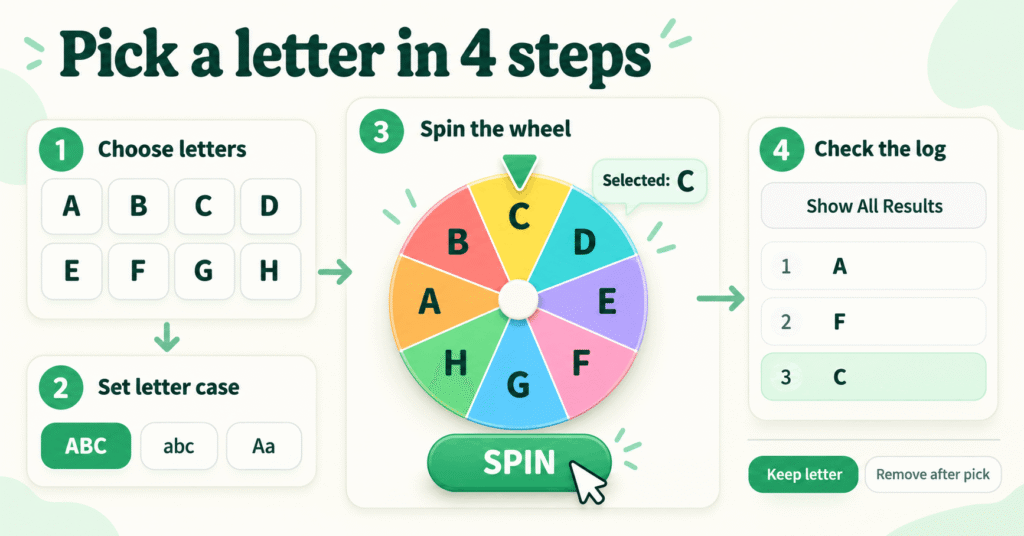
Picking a random letter takes four moves: decide which letters are eligible, decide how they look, start the spin, then check the log before acting on the result.
- Input options: choose the complete alphabet, a trimmed group or a pasted list; this is the step most people rush and later regret.
- Style options: set capitals, small letters or both before anyone sees the dial.
- Spin the wheel: press the button, or use the keyboard shortcut if your hands are already on the keys mid-lesson.
- Show All Results: open the log after each pick so the letter, and every earlier one, stays on record.
Step one deserves the most care because every later choice rests on it. A pool that still holds Q, X and Z can sink a timed round for younger players, while a pool that is too narrow makes the outcome predictable. I run two practice spins with the whole group watching, so nobody accuses the tool of rigging the first real pick.
Before the first real spin, also decide what happens to a drawn letter. Keeping it on the dial suits drills where repetition helps; pulling it off suits Bingo calls, where a repeat would confuse cards already marked. I open Settings at this stage too and switch off any button animation that slows a fast-paced group down.
Which Letter Sets Can You Draw From?
Letter sets on a random letter generator usually come in five forms: the full A to Z run, vowels only, consonants only, a trimmed pool without the rarest letters, and a hand-typed list.
| Letter pool | Entries | Where it earns its place |
|---|---|---|
| Full run | 26 | Recitation checks and letter recognition drills |
| Vowels only | 5 (A, E, I, O, U) | Short-vowel word families and phonics practice |
| Consonants only | Every non-vowel | Initial-sound hunts for a nearby object |
| Trimmed pool | 23 | Timed category rounds such as Stop |
| Paired cases | 52 | Matching each small letter to its capital |
| Hand-typed list | Whatever you enter | Initials, pet names or a second script |
The trimmed pool is the one I reach for with mixed ages. Dropping the three hardest letters means nobody freezes on a category while the timer runs, and older players rarely miss the challenge. If a group asks for difficulty, I add one rare letter back rather than restoring all three at once.
A hand-typed list behaves differently from the presets. Whatever you paste gets cleaned before it reaches the dial, so stray punctuation and gaps vanish and a pasted phrase splits into separate entries. That cleaning step is why I prefer typing a fresh list over editing a preset when a class is working on one specific sound.
Should Letters Stay on the Wheel or Drop Out After Each Pick?
Letters should stay on the wheel when repetition is useful, as in sound drills, and drop out after each pick when every letter must come up exactly once, as in bingo calls or relay races.
The keep-everything approach treats each pick as a fresh draw, so the odds never shift. That suits a five-minute phonics sound drill, where hearing B three times is practice rather than a flaw, especially with Read Aloud voicing the result for pre-readers. It is the wrong choice for anything with a finish line, because the last few letters may never arrive.
The drop-out approach shrinks the dial with every result and logs each departure in the history section, so after a full cycle the pool is empty and every letter has had a turn. I use it for a word brainstorm race relay: one letter, one minute of writing, then the next team inherits a smaller wheel.
A contrarian note on fairness: drop-out draws grow less random as the round goes on. By the second-to-last pick only two letters remain, so I cover the dial for the final few draws to keep suspense alive, then reset the list for the next class.
What Games and Activities Need a Random Letter?
Games and activities that need a random letter fall into three families: category races for older players, hunt-and-find tasks for movers, and drawing or writing starters for quieter learners.
For a short lesson, this is the order I run them in, moving from loud to focused:
- Letter sounds: say the sound of the picked letter aloud before anyone offers a word.
- Spelling challenges: each child names one of the animals or foods that begins with that letter.
- Draw a picture: sketch an item starting with the letter, which gives shy children a way in.
- Tracing: finish on paper by writing the letter slowly, once large and once small.
Category racing rewards speed, so it suits teens and adults; hunt-and-find rewards movement, which suits younger children who cannot sit still for long. Teachers I have worked with treat the whole sequence as open-ended: nobody keeps score, and the letter is just the spark for talk, sketching or writing.
For a guessing twist, a Mystery Result setting hides the pick until you press Enter, which turns any of the four steps above into a reveal moment. Older groups who want competition can still track accumulated scores across rounds, but I find the guessing alone keeps a room engaged.
How Do You Change the Letter Case on the Wheel?
Letter case on a random letter wheel is changed through a display option that shows every entry as capitals, as small letters, as both forms paired, or exactly as you typed it.
Uppercase is the safer starting point for pre-readers, because capital letters have fewer mirror-image pairs; b and d confusion only appears once lowercase joins in. I keep capitals for the first weeks and switch only when the group can name every letter out of sequence without hesitation.
Pairing both forms works well for a matching games table: one child calls the pair, another finds both tiles. Combining the two cases gives 52 characters on the dial, so slices shrink fast on a small screen, and I pick high-contrast color themes to keep them legible for children who already read both cases.
Which displays are offered can change with the chosen pool, so set the pool first and the case second. When I type a hand-made list of writing prompts in sentence form, I leave it exactly as entered, because forcing a full prompt into capitals makes it harder, not easier, to read.
Which Alphabets and Languages Can a Letter Generator Use?
A letter generator can draw from English and, on many tools, from French, German, Spanish, Greek, Hebrew, Armenian, Russian, Chinese and Japanese sets as well.
Latin-based European alphabets add accented or extra letters on top of the English base, so a French draw can land on a letter that many English keyboard layouts hide behind a shortcut. That surprise is useful: it forces learners to say the letter’s name in the target language instead of falling back on English sounds.
Scripts outside the Latin family change the exercise. Greek and Hebrew have compact alphabets that a learner can work through in a sitting, while a Chinese draw pulls from thousands of characters, so the tool behaves more like a flashcard deck than an alphabet drill.
From tutoring adults in a second script, I found random order is the whole point: people who recite a script in sequence often stall on a letter shown alone. A random draw exposes that gap fast, and it makes a cleaner ESL check than a worksheet. When a learner moves on, I load another alphabet and keep a cumulative log of the letters they missed.
Can You Keep the Letter Hidden Until the Last Second?
A letter wheel can keep its result hidden in two ways: by masking every slice with a question mark before the spin, or by keeping the picked letter covered until someone clicks to uncover it.
Masking the dial changes behaviour more than I expected. When children cannot see the letters, they stop cheering for favourites and start predicting, which turns a plain drill into a spontaneous guessing round and a quiet dose of playful learning. You can also hide the inputs panel so the list itself gives nothing away.
Covering only the result suits a drawing challenge: the artist sees the letter privately, then sketches while the room guesses. The letter is announced only when the artist finishes, and I add a short sound cue at that moment so the room knows to look up. I start each round with Ctrl + Enter from the laptop, which keeps my hands off the board.
The two approaches solve different problems. A masked dial removes bias before the pick; a covered result builds suspense after it. Asking the class which item comes up next before uncovering it is the simplest version, and with very young groups I use only one masking option per round, because a double wait feels slow.
How Do You Customize Spin Pace, Audio and Colours?
Spin pace, run time, audio cues and colours on a random letter wheel are all adjusted from the tool’s options panel, with most visual extras free and a few branding features kept for paid accounts.
Pace matters more than people expect. A quick, short spin keeps warm-ups moving, while a slow, long one gives a nervous child time to watch the pointer drift. In a Primary classroom I slow everything down and switch off celebration effects, because the excitement can drown out the letter itself.
Audio is the second lever. Separate cues can mark the start, the turning and the stop, and in shared spaces I mute all but the final chime. Colour choice is about legibility rather than decoration: I pick the palette that keeps letters easiest to recognize from the back row, then switch to Full Screen View on the projector.
A title strip above the dial can carry result titles that cycle in order, such as “Round one: animals” and “Round two: places”, which saves me from naming each category aloud. Paid tiers add your own artwork and branding, and a shareable branded wheel can be worth it for a school fair, though I have never needed one for daily teaching.
How Do You Add a Title and Rotating Headlines to the Wheel?
A title and rotating headlines are added in the wheel’s title section, where you type a heading, a short explanation and one or more lines that appear above each result.
I label every classroom wheel with the task, not the tool’s name. “Find household items for this letter” does more work than “Letter Wheel”, because a child glancing up knows what to do without asking. The short explanation line underneath is where I put the rule, such as “no repeats from your partner”.
Several headline lines rotate one after another with each spin, which suits a story starter sequence: line one says “Character”, line two “Place”, line three “Problem”. Children draw a letter for each and build a collaborative story from the three answers, and when the lines run out the sequence returns to line one for the next team. This small feature replaced the index cards I used to shuffle by hand.
Branding sits in the same area for paid users. A Premium plan lets a school add a logo or banner and a custom spin button in house colours, which matters for open days far more than for ordinary lessons.
How Do You See, Save and Share Past Results?
Past results on a random letter wheel are kept in a running log that you can open, switch to a tally view, share as a page or picture, and wipe when the session ends.
The tally view is the part most people skip, and it is the one I value most. After a week of daily draws I can check the spin count for each letter, see which ones the class has practised least, and turn the tally into math activities where older pupils chart how often each letter landed. Counting real results beats arguing about whether the wheel is fair.
Sharing works at two levels. A single pick can go out the moment it lands, or the whole log can become a link for parents who want to repeat the activity at home. Unlike quiz templates with leaderboard scores, the log records letters only, so nobody is ranked.
Wipe the log between groups. When small groups take turns at one laptop, a log left over from the previous class muddles the tally, so I clear it before each group sits down, and I turn off the confetti for the final group of the day.
How Do You Put the Letter Wheel in Full Screen?
A letter wheel goes full screen through a view button that blows the dial up to fill the display and tucks the entry list out of sight until you exit.
On a projector or interactive board this is the mode I use most, because the input panel is a distraction and the dial sits in the center where every desk can see it. Projectors wash out pale shades, so I avoid a light page color, drop the slice transparency and skip any background image behind the dial.
The log stays reachable while the panel is tucked away, so I can still check earlier picks mid-lesson and simply keep spinning through the activity without leaving the big view. One toggle brings the entries back when I need to edit a list on the fly.
Browsers add a second layer. Chrome, Firefox, Edge and Safari each have their own full-screen shortcut that hides tabs and the address bar, and stacking that on top of the wheel’s view gives the cleanest picture on a shared screen.
Which Alphabet Printables Pair Well With a Letter Generator?
Alphabet writing sheets, bingo boards, colouring pictures, hand-shaped art templates and hunt checklists all pair well with a letter generator, because each one needs a single letter to get started.
Paper still matters after the screen does its job. The draw picks the letter in a second, while the sheet holds a child’s attention for ten minutes. I pair a scavenger hunt checklist with each draw, then run quick name something that starts with rounds as a short activity while stragglers finish.
Prep is the hidden cost. I print a full set once, laminate it, and let the wheel decide which page comes out, so a drill feels new every day with no-prep effort after the first week. In a homeschool setting with one learner, I give the wheel a tool title that matches the sheet and a one-line description of the task.
A tip from experience: match the sheet’s case to the wheel. If the screen shows capitals and the page shows small letters, the activity has to be adapted on the fly. I also download a results image of the week’s draws and send a results link home so families can reuse the same letters.
Does a Letter Generator Work on Any Device or Browser?
A letter generator runs inside the web browser, so it works on every common desktop system and major browser without an install, an account or a robot check.
That matters in schools where staff cannot install software. A free online tool that loads in a tab sidesteps the IT ticket, and I have run the same wheel on a staffroom laptop, a classroom board and a phone without changing anything.
Text-based generators work differently from wheels. Instead of one letter, they return a string shaped by user-provided inputs: you fill in the Numbers of letters field, set a length for each item, choose the Number of Characters, and edit Letters to choose from, which ships with the default set abcdefghijklmnopqrstuvwxyz. For numbers instead of letters, the random number generator picks any number in a range you set.
That string output suits developers filling test forms, puzzle makers building word searches, and anyone who needs placeholder text quickly. I keep a text version bookmarked for jobs where a spinning dial would only slow me down.
How Many Letters Are in the English Alphabet, and When Do Kids Learn Them?
The English alphabet has 26 letters, from A to Z, and children typically begin learning them before formal schooling and keep refining them through the first school years.
The count was not always fixed; school recitations once ran to 27 entries, with the extra one tacked on at the end. Early learning mixes worksheets, games and repetition, with recognition coming first and lowercase practice usually following capitals.
A random draw helps from the very first week of learning letters because it checks whether a child knows a letter out of sequence, not just in a chanted run. For adults, the same check doubles as basic language practice when they first read and write a new script.
Can a Letter Generator Use Alphabets Other Than English?
Yes, a letter generator can use alphabets other than English, either through built-in language options or by typing your own entries into a custom list.
English is the default setting, and the European options add a few more letters than the English base. Of the compact scripts, the Mediterranean one has 24 letters and the Middle Eastern one has 22, while the Non-Latin options include an Asian set of over 3,000 entries and another covering every Hiragana syllable.
Typing other scripts on Windows, Mac or Linux needs the right keyboard layout, but pasting works anywhere. I have seen families build a baby name list in a heritage script this way, then spin for the first letter.
How Can You Use a Letter Generator, and Which Games Fit It?
A letter generator fits any game or activity that needs a fair starting letter, from vocabulary drills to word games and short story writing.
For vocabulary, players list words that start with, end with or contain the drawn letter. For writing creativity, draw 10 letters and write ten sentences, each opening with one of them, which produces a surprisingly strange little story.
Younger kids can follow up with coloring pages or handprint crafts for the same letter, which turns a drill into play. Because the draw needs no setup, it also saves time between lessons. I have watched a reluctant writer fill a full page this way, because the drawn letters made the hardest choices for them.
Can a Letter Generator Work as a Classroom Spinner for Whole or Small Groups?
Yes, a letter generator works as a classroom spinner, replacing a cardboard dial or dice for a full-class round or for teams taking turns.
With the full class, one draw sets the task for every desk: think of a word, sketch it, or find classroom objects that start with it. With teams, each takes a turn at the screen, then spends a minute brainstorming words or running a word-association chain. For spelling practice, the word scramble maker jumbles your own word list and prints an answer key.
Classroom teachers can set the speed anywhere on level 1 to 10 and the duration from 1 to 30 seconds to match the group’s pace. The wheel slots neatly into literacy centers, and for weekly spelling lists I clear records before each new team starts.
Can You Leave Out Tricky Letters Like Q, X and Z?
Yes, you can leave out the hard letters by choosing the No hard letters preset or by removing them from the list by hand.
The preset means those three are filtered out before the spin. When editing by hand, enter letters one per line; stray commas and spaces in a pasted list are cleaned automatically.
You can also temporarily drop a letter for one lesson and add it back later. Combining that with a draw without repeats takes just two usage steps: pick the set, then turn on the no-repeat option. Older players often ask for the full set back once they feel confident, which is a good sign of progress.
Can You Get Random Letters Without Repeats?
Yes, you can get random letters with no repeats by switching on the option that takes each winner off the dial after it is drawn.
On wheel tools this is a checkbox labelled Remove the winner after each spin, and once ticked each letter appears only once. Tools with named modes call the same idea Elimination mode, which keeps drawn letters out of future spins.
In Normal mode, by contrast, the entries stay the same between spins. If you only need to avoid repeats of one letter, delete it from the list instead. I switch the drop-out option on for bingo and relays and leave it off for sound drills, where repeats are useful practice.
Does a Letter Generator Show Uppercase or Lowercase Letters?
Many letter generators show uppercase letters by default, and many let you switch to lowercase or a paired display.
A paired display looks like Aa, Bb, Cc, while Original keeps typed entries unchanged. The case choices depend on the pool you pick, so filter to the set you want first.
Capitals suit children at the start because they have fewer look-alike shapes. On a projector, browser zoom enlarges the letters, and printables in the same case keep the lesson consistent. Once a group knows every capital, I move to the paired view for a week before switching fully to small letters.
Can You Limit Results to Vowels or Consonants Only?
Yes, many letter generators let you limit results to vowels or consonants through a preset pool.
The vowel pool holds five letters, and the consonant pool holds the other 21. If your tool lacks the preset, enable a custom list and type the letters into the entries box.
The result pops up in a dialog, and a voice option that speaks the result turns a vowel-only pool into a listening drill. To check the list is complete, use sort from the More menu to line the letters up. A vowel-only wheel is my favourite five-minute warm-up for short-vowel sounds, because every result can be blended with a consonant on the board.
Why Use a Letter Generator Instead of Picking a Letter Yourself?
A letter generator is fairer than picking a letter yourself, because it has no favourite letters, and it is faster, because it needs no setup between rounds.
A random initial angle means nobody can time the pointer, and a manual stop button lets a child end the spin without steering the outcome. Compared with a physical spinner or a die, the screen shows the full alphabet without lost pieces and gives letters one at a time.
You click a button, there is no captcha to slow the class down, and the whole draw fits into a two-minute spelling practice slot.
What Is a Single Random Letter Generator?
A one-letter random generator is a simple tool that shows exactly one letter per draw, rather than asking how many letters you want.
Some sites also present it as an alphabet generator and add a cursive letters version. A wheel variant called Mystery Wheel replaces every slice with a question mark until the spin ends.
Text versions can also churn out fake letters for harmless pranks, though I use mine for class. It suits short learning breaks between longer tasks. The one-letter format keeps every eye on the same result, which is exactly what a quick class check needs.
What Was the 27th Letter of the Alphabet?
The extra letter once recited at the end of the English alphabet was “&”, the sign we now type in place of the word “and”.
The English alphabet currently ends at Z with 26 letters, and modern alphabet songs stop there too. Children in early elementary school rarely meet the old entry, though the sign itself is still on every computer.
Because the sign followed the last letter in old school recitations, it was treated as part of the alphabet rather than as punctuation. When I mention it in an alphabet lesson, older pupils are usually surprised the list ever had an extra entry, and it makes a good trivia question to close a session.
What Are Letter Numbers?
Letter numbers give each letter its position in the alphabet, running from A = 1 to Z = 26.
| Letter | Number | Letter | Number |
|---|---|---|---|
| A | 1 | N | 14 |
| B | 2 | O | 15 |
| C | 3 | P | 16 |
| D | 4 | Q | 17 |
| E | 5 | R | 18 |
| F | 6 | S | 19 |
| G | 7 | T | 20 |
| H | 8 | U | 21 |
| I | 9 | V | 22 |
| J | 10 | W | 23 |
| K | 11 | X | 24 |
| L | 12 | Y | 25 |
| M | 13 | Z | 26 |
Number codes like these turn up in puzzles and ABC picker games, and they are a neat follow-up after a wheel lands on one of the tricky letters. The old 27th entry, called Et or the ampersand, sat after Z until 1835 and survives today as the “&” symbol on keyboards. Teachers sometimes use the table for simple code-breaking games, where pupils swap the letters of their name for numbers. For other quick random picks, browse all our dice, coin and number tools.